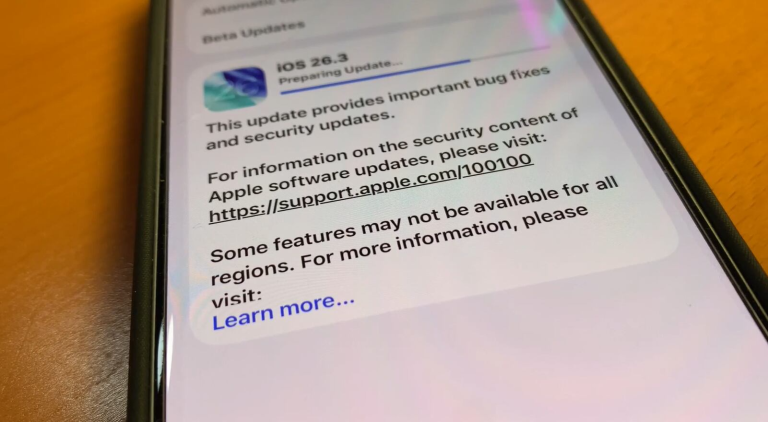

How to Identify and Install Critical Software Updates
Understanding the Importance of Software Updates
In our increasingly digital world, keeping software up to date is crucial for security and performance. Many users underestimate the risks associated with outdated software. Regular software updates not only fix bugs but also protect against vulnerabilities. The reality is that cyber threats are becoming more sophisticated, which makes maintaining updated software not just a good practice but a necessity in safeguarding personal and organizational information.
Why It’s Essential
Installing critical software updates can protect you from various threats:
- Cyberattacks: Outdated software is a significant target for hackers. For instance, high-profile breaches like the 2017 Equifax data breach occurred, in part, due to unpatched vulnerabilities in software, compromising the personal information of over 147 million people.
- System Stability: Updates often improve the overall performance of your device. They can address issues such as crashes, slowdowns, and unexpected behavior that can significantly strain your productivity.
- New Features: Updates can introduce features to enhance your user experience. For example, mobile operating system updates often include enhancements that streamline user interfaces or improve battery performance, ultimately leading to more satisfying experiences for users.
However, knowing how to identify which updates are critical can be overwhelming. Many users miss out on essential updates due to a lack of knowledge about the update process. This article will break down the steps to effectively find, evaluate, and install these updates, transforming what can seem like a daunting task into a manageable routine.
What to Look For
When evaluating software updates, consider the following:
- Security Patches: Look for updates specifically aimed at fixing security vulnerabilities. It is essential to monitor announcements from vendors regarding urgency and severity.
- Compatibility: Ensure the updates are compatible with your system. An update meant for a newer system may cause more harm than good if installed on older hardware.
- Source: Always download updates from verified sources to avoid malicious software. Microsoft, Apple, and other reputable companies provide secure platforms to facilitate a safe update process.
In the upcoming sections, we’ll explore practical tips to help you stay secure and updated in a fast-paced digital environment. These tips will include setting up automatic updates, regularly backing up your data, and reviewing update logs to better understand what changes are being made. Taking action today can significantly impact your digital safety, turning software maintenance into a proactive measure rather than a reactive response to threats.
DIVE DEEPER: Click here to discover the impact of software updates
Identifying Critical Software Updates
In today’s rapidly evolving technological landscape, the volume of software updates can feel overwhelming. Yet, distinguishing between critical updates and regular enhancements is fundamental for maintaining security and system integrity. As a user, understanding how to effectively identify these crucial updates can help ensure that your devices remain protected against potential exploits.
Assessing Update Notifications
Most software applications and operating systems have built-in mechanisms to alert users about available updates. However, these notifications can vary in presentation and urgency:
- Critical Alerts: Critical updates may be labeled as such and often come with a sense of urgency. For example, operating system alerts detailing security patches typically emphasize the serious nature of the vulnerabilities being addressed.
- Regular vs. Optional Updates: Updates are often categorized into security updates, feature updates, and optional updates. Security updates should always be prioritized because they protect your system from newly discovered threats, whereas optional updates may include non-essential features or enhancements.
- Vendor Communication: Pay attention to communications from software vendors. These can include newsletters, blog posts, and official social media announcements that detail the importance of pending updates and specific instructions regarding installation.
Researching the Update Content
Before installing any update, it’s wise to check the specifics. Most reputable vendors provide detailed release notes that outline what each update covers. Investigating this information can give you a clearer perspective on whether an update is critical to your system’s safety. Look for the following information:
- Vulnerability Severity: Security-related updates will often list the vulnerabilities being patched and their severity ratings. Common rating systems include the Common Vulnerability Scoring System (CVSS), which assigns scores based on exploitability and impact.
- Compatibility Information: Some updates may be incompatible with older hardware or existing software. Checking compatibility details can prevent installing an update that may hinder your system rather than enhance it.
- Effects on System Performance: Release notes often include performance changes resulting from the update. This can be especially important for businesses whose operations depend heavily on their software systems.
To maintain optimal security and functionality, it is vital to stay informed about the updates specific to your software and devices. By actively monitoring alerts and researching the details of updates, you’ll be better positioned to make informed decisions and protect your digital assets efficiently.
Setting Up a Routine
Developing a consistent routine for checking for updates can streamline the process and significantly enhance your cybersecurity posture. Consider scheduling time weekly or bi-weekly to review available updates across all devices. Doing so will ensure you’re not only aware of what’s available but also can act quickly to install critical updates as they are released.
In the next sections, we will explore the step-by-step process for installing critical updates, including tips on setting up automatic updates and the importance of backing up your data before making changes. By understanding the identification process today, you will be equipped to tackle tomorrow’s software challenges with confidence.
How to Identify and Install Critical Software Updates
Understanding how to identify and effectively install critical software updates forms a cornerstone of maintaining your digital environments in peak condition. As organizations increasingly rely on complex software ecosystems, it is essential to grasp the significance of these updates. They bring essential security enhancements and feature improvements that can directly impact your operational capabilities.
| Category | Benefits |
|---|---|
| Security Enhancements | Protects against vulnerabilities and malicious attacks by providing timely patches that address discovered flaws. |
| Performance Improvements | Boosts efficiency by optimizing software operation, leading to faster load times and reduced errors. |
| Compatibility Issues | Ensures smooth integration with new hardware and software, facilitating the overall user experience. |
| Feature Upgrades | Access to new tools and functionalities that improve productivity and streamline workflows. |
Identifying critical software updates can be achieved by subscribing to vendor notifications, using automated update tools, and regularly checking for updates through software dashboards. It is crucial to collaborate with your IT team to prioritize updates based on their severity and relevance to your organization’s needs. For success, a robust installation process should include backing up data, scheduling installations during off-peak hours, and testing updates in a controlled environment before full deployment. By following these guidelines, you ensure that your technological infrastructure remains both secure and efficient.
LEARN MORE: Click here to enhance your browsing safety
Installing Critical Software Updates
Once you have successfully identified critical software updates, the next step is to efficiently install them to enhance your system’s security and functionality. This process can vary significantly depending on the type of software and device you are using, but some universal practices can guide you through.
Manual Installation: Step-by-Step Guide
When opting for manual installation, it’s crucial to have a clear and methodical approach:
- Backup Your Data: Before installing any major update, taking a moment to back up your important files is critical. In the event of an unexpected issue, having a recent backup can save you from potential data loss. You can use cloud services such as Google Drive or local storage solutions for this purpose.
- Follow Vendor Instructions: Vendors typically provide clear instructions for updating their software. This can often be found on their website or within the software’s help section. Carefully follow these guidelines to avoid complications during installation.
- Disable Conflicting Software: Sometimes, anti-virus programs or other security applications may interfere with the update process. Temporarily disabling these applications can pave the way for a smooth installation. Just remember to reactivate them afterward!
- Verify System Requirements: Ensure that systems meet the minimum requirements specified in the update notes. Failing to do so may result in installation errors or degraded performance.
Utilizing Automatic Updates
Many modern devices, whether they are computers or mobile phones, allow automatic updates. Enabling this feature can significantly reduce the hassle of manual updates while ensuring that you always have the latest security measures in place.
- Adjust Settings: Navigate to your device or software settings to enable automatic updates. Most operating systems, including Windows, macOS, and distributions of Linux, offer straightforward settings to activate this feature.
- Schedule Update Times: Some systems provide the option to schedule updates for specific times, usually when you are less likely to be using the device. This can prevent disruptions during peak usage times.
- Patience is Key: Automatic updates may take longer, especially for larger software updates. It’s essential to allow your system the time it needs to complete the installation, which can range from a few minutes to several hours, depending on the complexity of the update.
Post-Installation Checks
After the installation process is complete, it is prudent to perform a few checks to ensure everything is functioning as expected:
- Verify Update Success: Check the update logs or notification messages to confirm that the installation was successful. Most operating systems provide a way to view your update history, allowing you to verify recent installations.
- Monitor Performance: Keep an eye on your system’s performance post-update. If you notice any unusual behavior, it may indicate an issue with the update, prompting you to seek assistance or look for patches that rectify the situation.
- Stay Informed: After installing updates, continue to subscribe to alerts from your software providers regarding any further critical updates or patches. Maintaining an informed perspective is crucial for ongoing protection.
By understanding how to not only identify but also seamlessly install critical software updates, you are bolstering your defense against potential security breaches and maintaining the overall health of your digital ecosystem. Stay vigilant and proactive, as the software landscape is constantly changing, and being prepared is essential for effective digital hygiene.
DIVE DEEPER: Click here to enhance your app’s performance
Conclusion
In today’s rapidly evolving technological landscape, staying informed about critical software updates is not just a matter of personal preference but a necessity for maintaining robust cybersecurity and system performance. As outlined in this article, a proactive approach begins with the effective identification of these updates. Leveraging resources such as official vendor notifications, security advisories, and reputable tech news sources can empower you to stay ahead of potential vulnerabilities.
Efficient installation practices, whether through manual means or by leveraging automated systems, are vital components in the software management lifecycle. By backing up important data, following clear vendor instructions, and monitoring system performance post-update, users can not only prevent common issues but also maximize the benefits of new features and security enhancements. Above all, the importance of regular updates cannot be overstated; each one represents a new layer of protection against evolving threats.
Looking ahead, it is crucial to continue educating yourself about the various types of software updates and their implications. Engaging with online communities, subscribing to technology newsletters, or participating in informational webinars are excellent ways to deepen your understanding. Remember, a well-informed user is the first line of defense against cyber threats. By making it a habit to routinely check for updates and embrace good installation practices, you commit to a safer, more efficient digital experience. So, stay updated—the health of your digital environment depends on it.