
How to Schedule Automatic Updates on Your Devices
Streamlining Your Device Management
In today’s digital age, keeping your devices updated is crucial for maintaining performance and security. Automatic updates can save you time, but scheduling them effectively is essential to avoid disruptions. As technology evolves, the software that powers our devices also requires regular tuning to keep up with new threats and feature enhancements.
Security Enhancements: One of the most critical reasons to enable automatic updates is for the security enhancements they offer. Every day, hackers exploit new vulnerabilities in software systems. Regular updates patch these vulnerabilities, protecting your sensitive data from potential breaches. For instance, last year, numerous ZOOM users were impacted by hacks that were mitigated through prompt updates released by the platform. Staying up-to-date ensures your devices are fortified against these emerging threats.
Improved Performance: Updates are often not just about security; they also improve the overall performance of your device. With each new update, manufacturers aim to resolve bugs that may slow down your system or application. For example, a recent Windows update significantly boosted the performance of older PCs, making them run smoother and faster. Ignoring these updates could lead to sluggish performance and a frustrating user experience.
New Features: Additionally, many software updates come loaded with exciting new functionalities that can help you utilize your device to its fullest potential. The introduction of new editing features in applications like Photoshop can significantly enhance creativity and productivity. Therefore, staying updated not only protects your device but also ensures that you are leveraging the latest tools available in the market.
However, the challenge lies in managing when these updates occur. The last thing you want is an unexpected update while you’re in the middle of an important project or a video call. To prevent this, many operating systems offer the option to schedule automatic updates during non-peak hours, such as overnight or during weekends.

Understanding how to schedule automatic updates effectively can help you take control of how your devices function. For example, in Windows, you can set a specific time or day for updates, ensuring that they occur when you’re least likely to be using your device. Similarly, on MacOS, users can easily adjust their update settings through the System Preferences menu. Throughout this article, we’ll explore the steps for scheduling updates on various systems.
By mastering this process, you’ll ensure that your devices are not only secure but also kept running smoothly at times that suit your lifestyle. Investing a little time in configuring your update settings can lead to significant benefits, boosting both security and performance without disrupting your work or leisure time.
DISCOVER MORE: Click here to dive deeper
Understanding the Importance of Scheduling Updates
As our reliance on technology grows, ensuring that our devices run smoothly and securely is paramount. This is where the concept of scheduled automatic updates comes into play. These updates manage everything from security enhancements to performance improvements, ensuring our devices are equipped to tackle the challenges posed by the digital age. By taking control of when these updates occur, users can effectively juggle their digital responsibilities, minimizing disruptions while maximizing device efficiency.
What Happens During Automatic Updates?
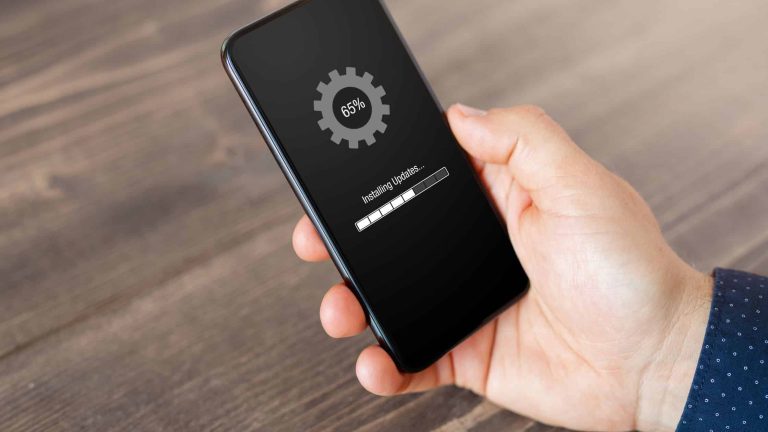
When your device undergoes an automatic update, it is essentially receiving a plethora of enhancements. These include vital security patches that protect against vulnerabilities, new features that enhance user experience, and performance improvements that help the device operate more smoothly. However, this process often necessitates a reboot, which can occasionally derail your workflow. To mitigate this, scheduling updates during times that are convenient for you can lead to fewer interruptions. Here are some valuable tips:
- Non-Peak Hours: Ideal times for updates are often during the night or early morning hours, when you are not actively using your device. Many users set their updates for around 2 a.m., a time when their computer or smartphone is idle and least likely to interfere with ongoing tasks.
- Weekends: Many individuals have a lighter workload during weekends. Scheduling updates during this time allows for necessary improvements without hindering daily productivity. This strategy not only ensures that updates are completed but also allows for feedback and adjustments on Sunday evenings when most users are preparing for the week ahead.
- Least Busy Days: Each user has unique work patterns. Identifying and selecting days that generally experience lower activity can be a smart move. For instance, if you notice that Wednesdays are typically slow, this could be the perfect time to schedule updates.
How to Set Up Scheduled Updates on Different Platforms
Different operating systems offer various methods for configuring automatic updates. Understanding how to navigate these settings will empower you to personalize the update process effectively. Here’s a brief overview:
- Windows 10 and 11: Accessing the update settings is simple: go to Settings > Update & Security > Windows Update and then navigate to Advanced options. Here, you can select a specific installation time that best fits your schedule.
- MacOS: For Mac users, updates can be scheduled easily by visiting System Preferences > Software Update. By checking the box for Automatically keep my Mac up to date, users can also set their preferred update schedule to suit their routine.
- iOS: iPhone users can manage their updates via Settings > General > Software Update. When Automatic Updates are enabled, iOS will intelligently suggest the best times for installations based on user activity patterns.
- Android: Android users can adjust their update schedules by going to Settings > System > Advanced > System updates. Here, options include installing updates when the device is charging or when it’s connected to Wi-Fi, minimizing the likelihood of disruption.
By becoming familiar with the scheduling options available for your device, you transform what can often be a nuisance into a seamless aspect of your digital environment. It not only saves time but also ensures that your devices remain secure and function at their best. In an age where technology is evolving rapidly, staying ahead of updates is not just an option but a necessity for efficient device management.
| Advantages | Description |
|---|---|
| Enhanced Security | Regular updates fill security loopholes, ensuring devices stay protected against new threats and vulnerabilities. |
| Improved Performance | Software updates often include bug fixes and performance improvements, leading to smoother device operation. |
| Time Saver | Scheduling updates reduces manual oversight, allowing users to focus on more important tasks. |
| New Features | Automatic updates ensure access to the latest functionalities and features as soon as they are released. |
When considering how to schedule automatic updates, it’s critical to factor in your device ecosystem, whether it’s a smartphone, tablet, or computer. Factors such as the operating system, user habits, and internet connectivity play a key role in creating an effective update schedule. By automating this task, you can ensure your devices not only stay compliant with security protocols but also remain user-friendly and efficient. Striking a balance between convenience and control is essential for optimizing your digital experience.
DISCOVER MORE: Click here for insights on effective usability testing
Best Practices for Managing Automatic Updates
Scheduling automatic updates is not just about choosing a convenient time; it also involves utilizing best practices to ensure that your devices remain in optimal condition. Understanding the nuances of managing these updates can save time, avoid frustration, and keep your devices secure.
Back Up Before Updating
One of the most crucial steps you can take before initiating updates is to perform regular backups. While automatic updates are designed to improve your device’s performance and security, there’s always a small chance of something going awry. Whether it’s a software glitch or a corrupted file, having a recent backup ensures that your important data is protected. Many operating systems offer built-in backup solutions:
- Windows: Utilize the Windows Backup feature found under Settings > Update & Security > Backup to set up OneDrive cloud storage or an external drive backup.
- macOS: Apple’s Time Machine service simplifies the backup process, automatically saving an up-to-date version of your files, allowing easy recovery in case of problems after an update.
- iOS: Regularly back up your iPhone to iCloud or your computer through iTunes, essential for safeguarding your information before scheduled software updates.
- Android: Access the backup settings in Settings > System > Backup to save your data and personalized settings to your Google account.
Monitoring Update Notifications
A less considered aspect of automatic updates is staying informed about the updates themselves. Each system periodically releases notifications about pending updates. Making sure you read these alerts, especially those categorized as critical updates, can be pivotal for security. Many times, these notifications highlight important changes or new features that can enhance device usability.
In addition, consider subscribing to official update channels for your operating system. For example, Microsoft has a dedicated blog that posts valuable information on upcoming updates, security patches, and new features. By keeping tabs on this information, users can prepare for significant changes and avoid interruptions in productivity.
Using Third-Party Management Tools
For those managing multiple devices or systems, third-party update management tools can serve as a commanding asset. These applications can streamline the scheduling process, allowing users to manage updates across various platforms from a single interface. Examples include:
- Ninite: This popular platform allows Windows users to easily manage and update multiple applications, making it less time-consuming to ensure that all software is current and secure.
- Patch My PC: An efficient solution for home and small business users, this software helps keep applications up to date while creating a backup before proceeding with updates.
- ManageEngine: For businesses, this comprehensive tool provides robust features for managing updates across networks, ensuring minimal disruption in workplace settings.
By leveraging these insights and tools, you can ensure that you are not just scheduling updates but are actively managing them in a way that suits your lifestyle and work patterns. Staying informed and prepared will help maintain the efficiency and security of your devices in an increasingly connected world.
DISCOVER MORE: Click here for insights on effective usability testing
Conclusion: Keeping Your Devices Updated with Ease
Scheduling automatic updates for your devices is not merely a task for the tech-savvy; it’s an essential practice for anyone looking to enhance performance, security, and efficiency. With the increasing reliance on technology in our daily lives, understanding how to seamlessly manage these updates can spare you from unexpected slowdowns or vulnerabilities that arise from outdated software. Remember, the cornerstone of this process lies in preparation. Regularly backing up your data provides a safety net against potential mishaps that may occur during updates. Utilizing built-in backup solutions across your devices keeps your information safe and sound.
Furthermore, staying engaged with update notifications ensures that you are always informed about critical changes that can enhance your device’s functionality. Subscribing to official channels for your operating systems can offer timely insights into upcoming updates and new features, fostering a proactive mindset towards device management. For those overseeing multiple devices, employing third-party management tools like Ninite or Patch My PC can simplify the entire process, allowing for a more organized approach to software maintenance.
In conclusion, embracing the practice of scheduling automatic updates not only improves your devices but also empowers you to navigate the complexities of technology with confidence. By following these guidelines, you can create a balanced routine that aligns with your lifestyle, ultimately ensuring that your devices are always performing at their best. So, take charge, stay informed, and let your technology work seamlessly for you.